
Follow these steps to grant admin access to EyeCarePro:
Granting Facebook Admin Access.
Before You Begin. To grant administrative access, you will need to switch from your personal profile to your Facebook Business Page profile. Please ensure you have your personal Facebook password handy; as a security measure, Facebook requires you to re-authenticate your identity before any high-level permission changes can be finalized. Additionally, the person you are adding must have a personal Facebook profile and may need to "Like" or follow your page before they appear in the search results.
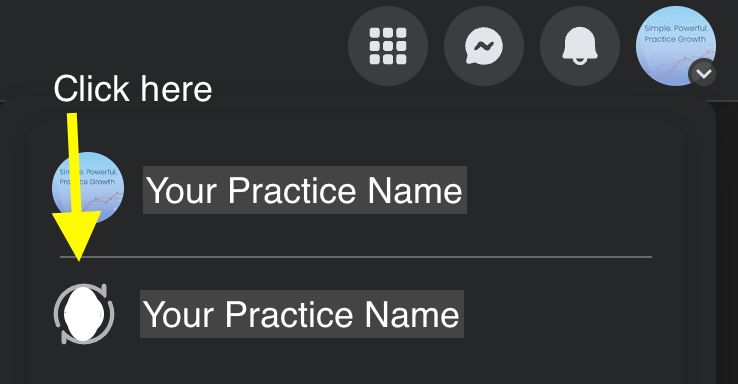
Step 1: Switch to Your Business Profile. Click your profile picture in the top-right corner to open the account menu. Select your Business Page from the list to switch into that profile.
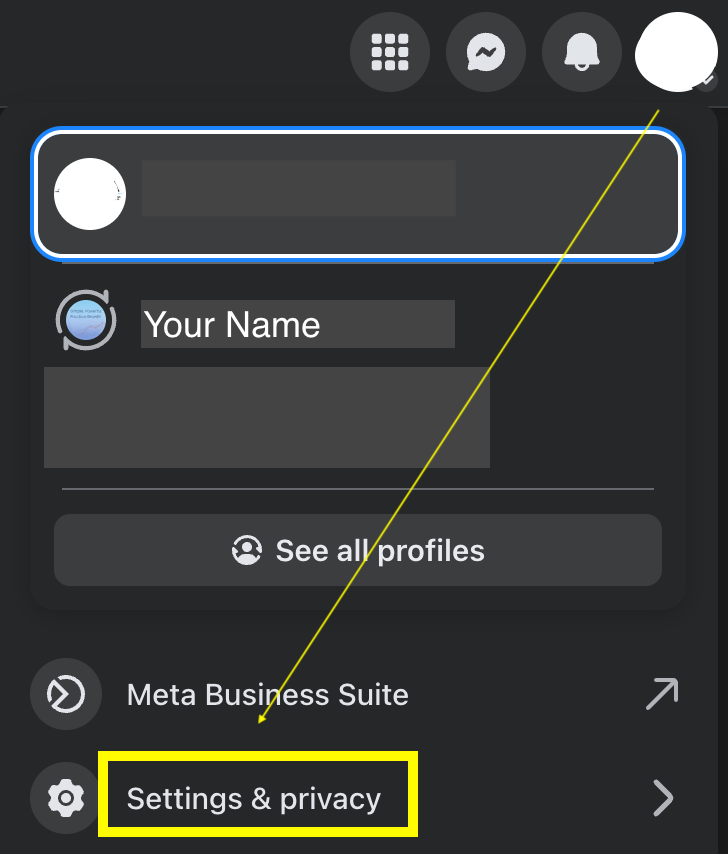
Step 2: Access Settings & Privacy Once in your Page profile, click your profile picture again and select Settings & privacy from the menu.
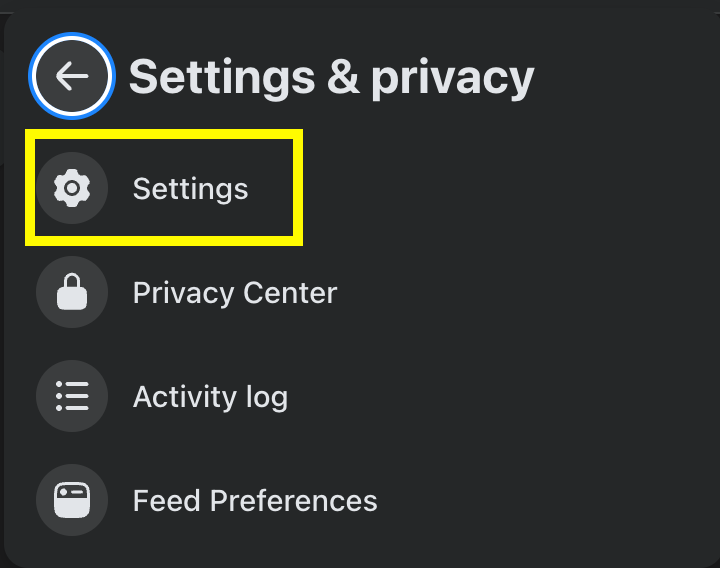
Step 3: Open Page Settings. From the sub-menu, click on Settings to open the main configuration panel.
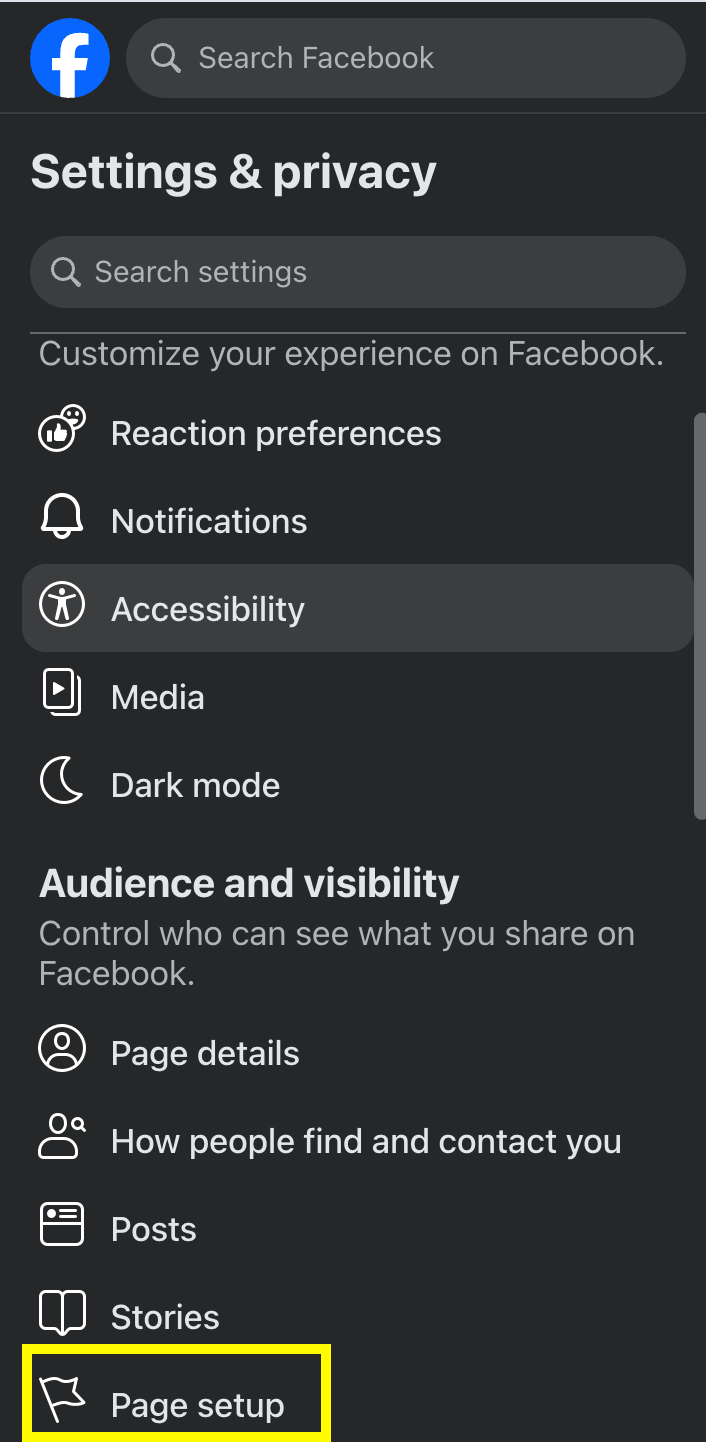
Step 4: Navigate to Page Setup In the left-hand sidebar, scroll down to the Audience and visibility section and click on Page setup.
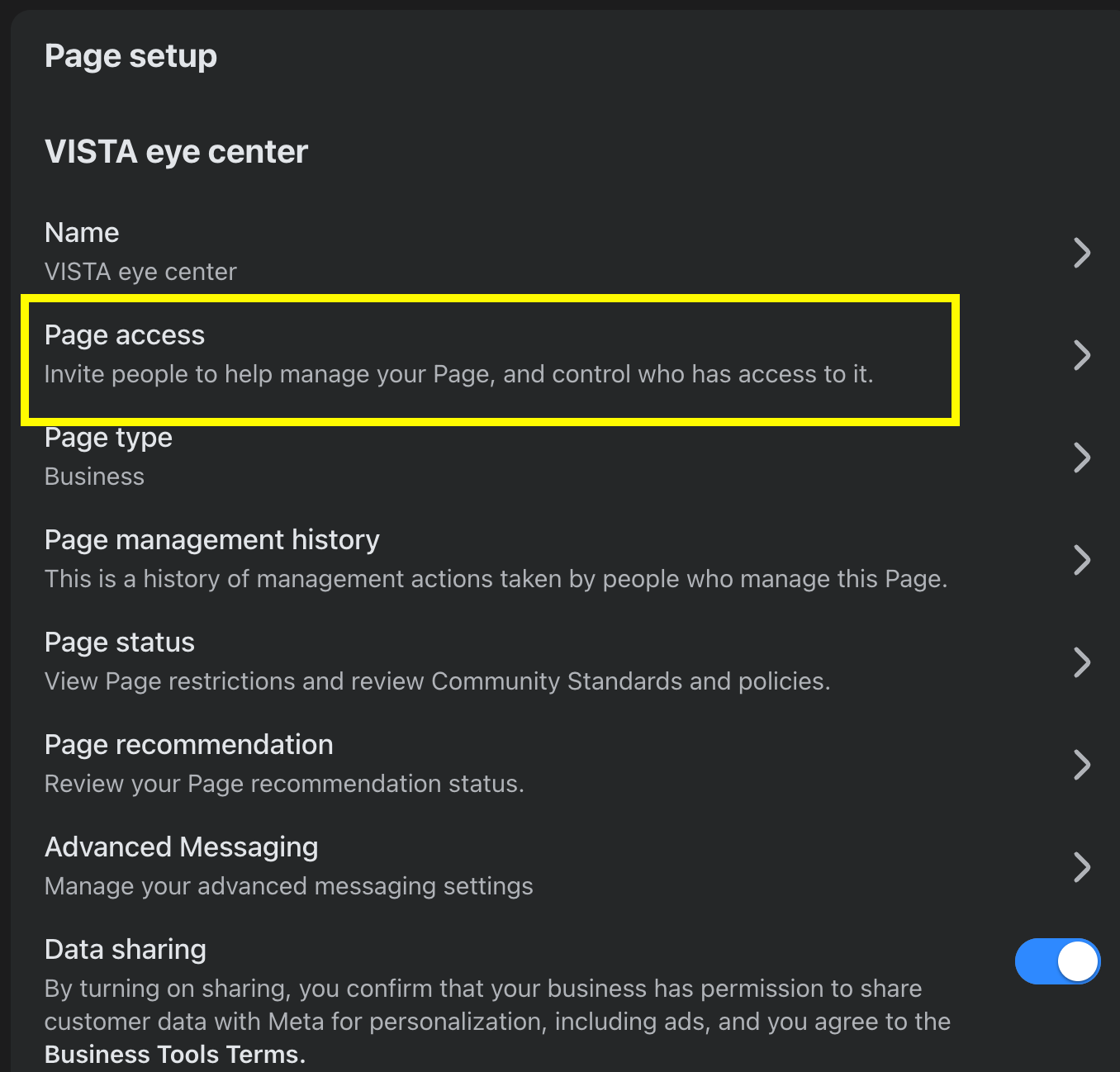
Step 5: Select Page Access. Under the Page setup options, find and click on Page access to manage who can control the Page.
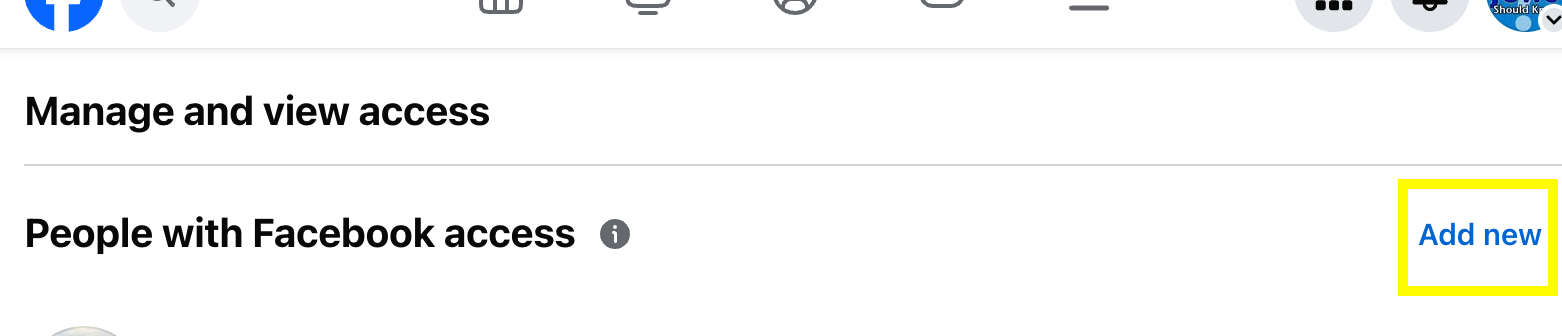
Step 6: Add a New Person. In the People with Facebook access section, click the Add new link on the right side.
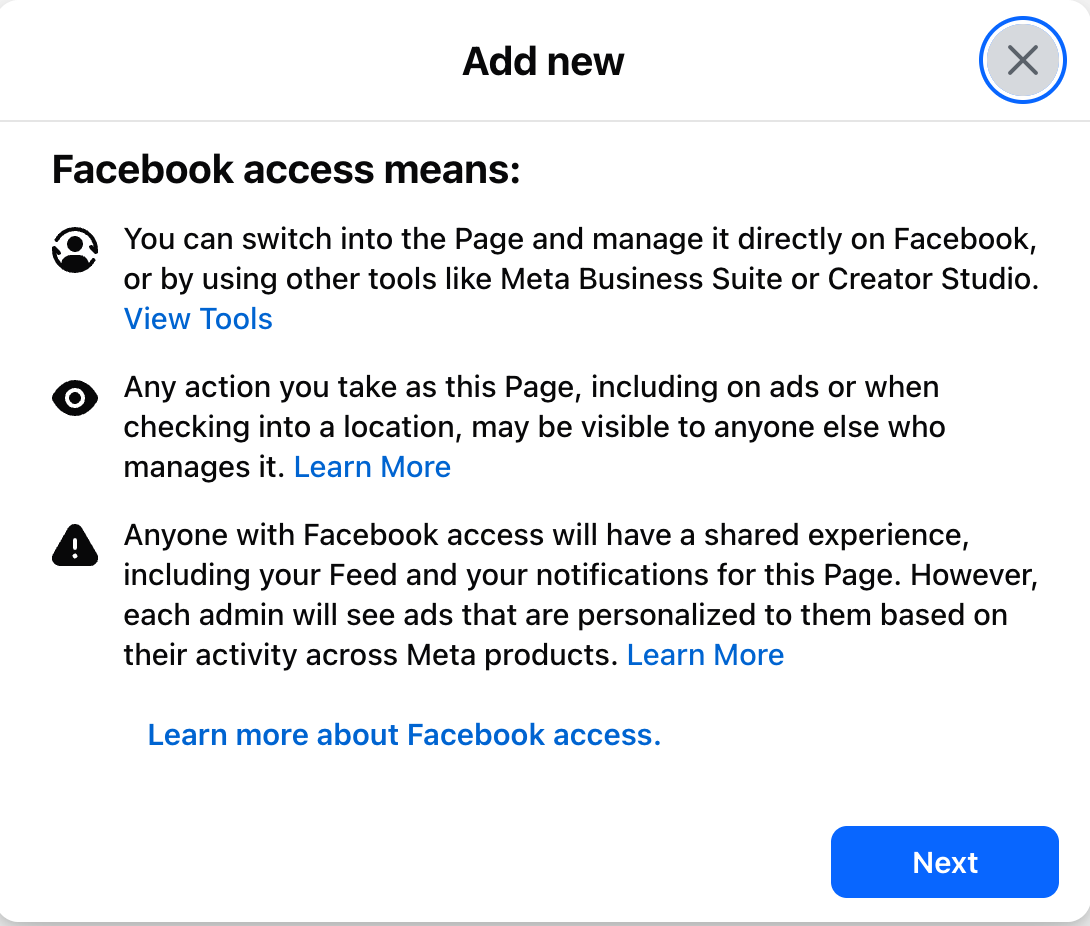
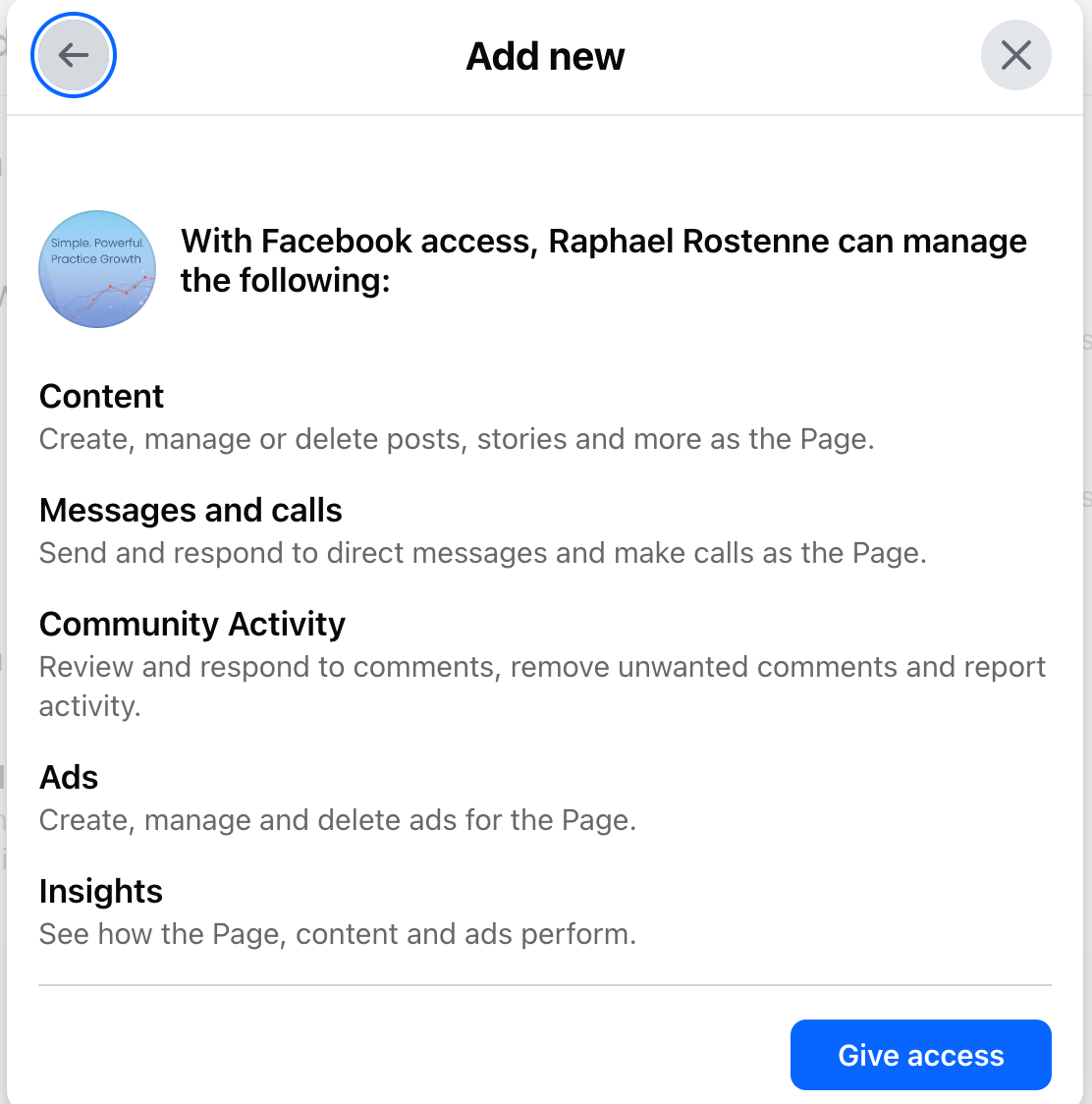
Step 7: Confirm Invitation Intent. An informational "Add new" pop-up will appear explaining what Facebook access means. Click Next to proceed.
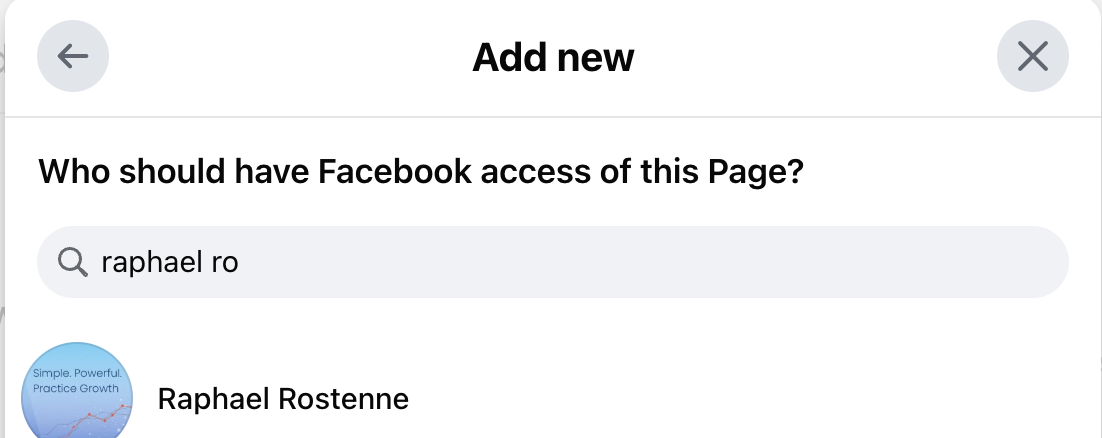
Step 8: Search for Raphael. Type "Raphael Rostenne" into the search bar and select his profile when it appears in the dropdown list.
Step 9: Grant Full Control. Review the permissions list. Ensure you toggle the switch at the bottom for Full Control (if required) and then click Give access.
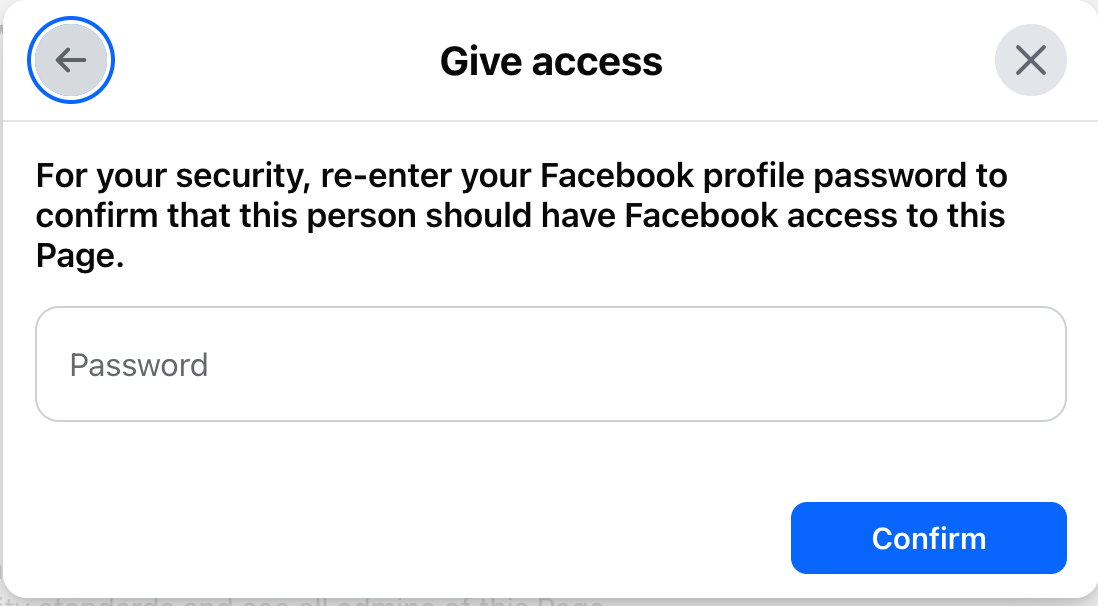
Step 10: Final Security Confirmation. For security, re-enter your personal Facebook profile password and click Confirm to send the invitation.
Mobile Device (Facebook App)
Switch Profiles: Tap the Menu (hamburger icon) in the bottom right (iOS) or top right (Android) and select your Business Page.
Open Settings: Tap the Menu icon again, scroll down, and tap Settings & privacy > Settings.
Find Page Access: * Tap Page settings for your business page.
Scroll down to the New Pages experience section and tap Page access.
Invite Raphael: * Under People with Facebook access, tap Add New and then Next.
Search for Raphael Rostenne.
Finalize Access: * Scroll to the bottom and toggle on Allow this person to also have full control.
Tap Give access, enter your password, and tap Confirm.
If you use Meta Business Suite / New Pages Experience
- Open your Facebook Page
Click on your profile photo
Go to:
Settings & Provacy
Settings
Page setup
Page access
Under: People with Facebook Access
Click: Add New
Search For: Raphael Rostenne or googlemybusiness.nine@eyecarepro.net
IMPORTANT: Allow Raphael to have full control to enable connections with Patient Engage.
Send the invitation